
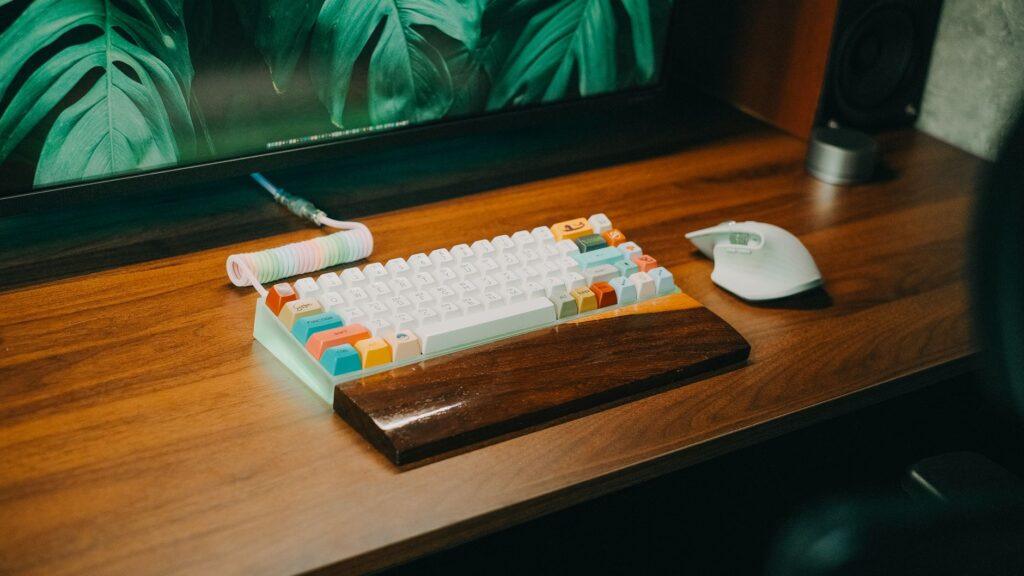

Taming the Digital Jungle: How a Personalized Desktop Makes Your Computer a Happy Place
I remember my first Windows XP machine. It was a beige box of pure potential, but the default desktop? A sterile wasteland. That first real dive into customization tools felt like unlocking a secret level. Suddenly, my computer wasn’t just a tool; it was mine. I could change the wallpaper, tweak the icons, and even make the menus behave. It was a revelation. This isn’t just about looks; it’s about making your daily computer interactions feel less like a chore and more like… well, just comfortable.
It boils down to reducing friction. Think about those icons you use a hundred times a day. If they’re not easily recognizable, or if they’re cluttered into an unmanageable mess, you’re wasting precious seconds, and frankly, your brain cells, trying to find what you need. Desktop customization tools let you organize these shortcuts logically, maybe group them by function or project, so that a quick glance tells you exactly where to click. It’s like having a perfectly organized filing cabinet instead of a mountain of loose papers. For example, using Rainmeter (a fantastic, free tool for Windows) allows for incredibly detailed skins that can display system information, weather, and even launchers for your most-used applications, all without cluttering your actual desktop with hundreds of tiny icons.
My own desktop transformation started with just a new wallpaper. But then I discovered Fences by Stardock. This software creates these neat, resizable “fences” on your desktop to group icons. Seriously, for anyone drowning in icons, Fences is a lifesaver. I’ve seen desktops go from utter chaos to something that looks almost like a professional graphic design project in under an hour, just by using Fences. It costs about $10 to $20, which feels like a bargain when you consider the daily time savings.
Of course, it’s not all sunshine and perfectly arranged icons. The biggest downside to heavy customization is that it can sometimes make your computer feel slower. All those extra programs running in the background, the fancy skins and animations – they eat up RAM and CPU power. I once went a little overboard with animated wallpapers and had a system that chugged like an old tractor, especially when I tried to open multiple applications. You’ll definitely want to keep an eye on your Task Manager and maybe stick to less resource-intensive customizations if your hardware is a few years old. You can read about how RAM affects performance on sites like Crucial.
And then there are the operating system updates. Oh, the dread. Just when you’ve finally got your desktop looking just right, a new Windows or macOS update rolls out, and suddenly, half your customizations are broken or look completely out of place. It’s enough to make you want to throw your keyboard across the room. I’ve lost count of how many times a software update has forced me to reconfigure my entire theme, rearrange my fences, or find new icon packs. It’s a constant battle of keeping up.
But when it works, it’s glorious. Take RocketDock or Nexus Dock for example, both free applications that give you a macOS-style dock on your Windows PC. These docks are incredibly useful for quick app launching and can be highly customized with different themes and icon sets. I use a dock on my secondary monitor to keep my applications easily accessible without taking up desktop space. It’s a small change, but it makes a surprising difference in how fluidly I can move between tasks. Finding good, free icon packs for these docks can be a treasure hunt, but the payoff is immense.
Beyond aesthetics and shortcuts, desktop customization can genuinely improve your workflow. Imagine setting up virtual desktops in Windows or macOS and assigning different applications and themes to each. You could have one desktop for work with all your productivity apps and another for personal use with your media players and social media. This segregation helps maintain focus and reduces the mental overhead of switching between different contexts. It’s like having a clean desk for every task you undertake. For more on managing virtual desktops, Microsoft Support has some helpful guides.
Ultimately, the comfort derived from a customized desktop is deeply personal. What works for me might be a nightmare for someone else. Yet, the ability to mold your digital environment to your specific needs and preferences is a powerful thing. It’s not just about making your computer look pretty; it’s about making it work for you in a way that feels intuitive and pleasant. It’s the difference between a generic, one-size-fits-all experience and something truly tailored.
I’ve spent more time on customization than I care to admit. Yet, I find myself constantly tweaking, refining, and experimenting. It’s a never-ending quest. Maybe we should all just accept that our computers will never be truly “finished.”