
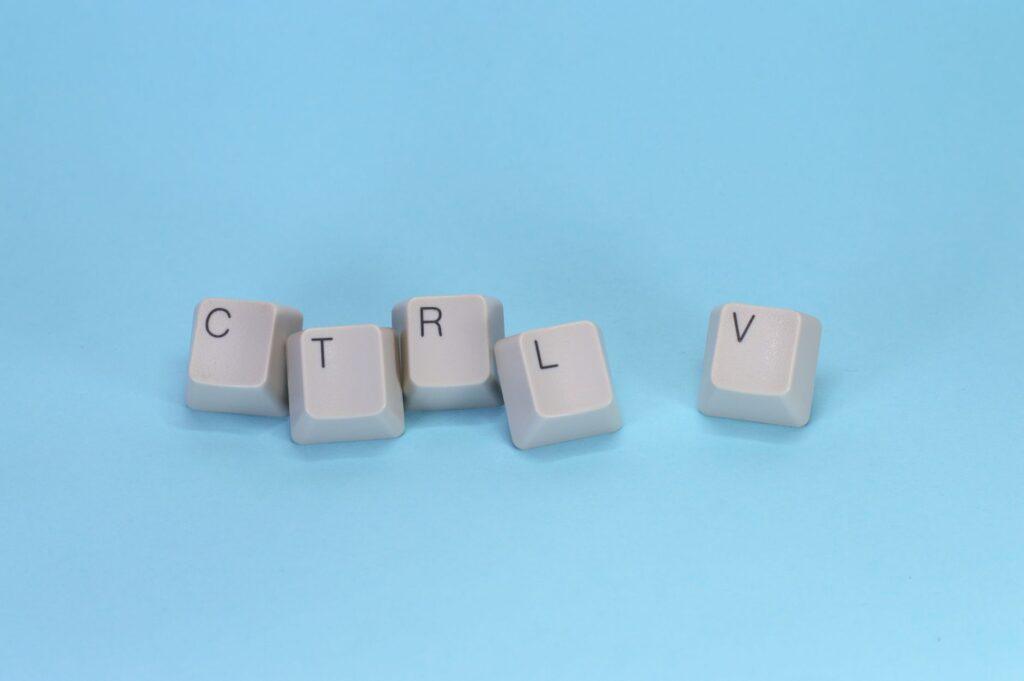

Ditch the Mouse, Unleash the Speed: How Keyboard Shortcuts Are Your Secret Productivity Weapon
Honestly, I used to be a mouse fiend. Clicking everything felt natural, the default setting. But then I started dabbling in video editing, and let me tell you, those little keyboard shortcuts completely changed the game. What might seem like tiny time-savers add up to actual hours saved each week, potentially freeing you up for something more enjoyable than hunting for that perfect menu option. Imagine slashing the time you spend on repetitive digital tasks by 10% to 20%, or even more, depending on your workflow. It’s not just about speed; it’s about keeping your brain in the zone without breaking your flow to grab a mouse.
I remember being absolutely gobsmacked the first time I saw someone select multiple files in Windows Explorer using just the Shift and Ctrl keys combined with the arrow keys. Before that, I’d painstakingly click each one, or drag a selection box. Now, I can zip through hundreds of files in seconds. It felt like I’d discovered a cheat code for my own computer.
Forcing yourself to learn even a few essential keyboard shortcuts can feel like a chore at first. It’s like learning a new language, and honestly, sometimes I just want to get things done now, not spend five to ten minutes fumbling through a new command. That’s the biggest criticism, right? The initial learning curve can be steep, and it’s easy to revert to old habits when you’re stressed or in a hurry. You might even accidentally trigger the wrong shortcut and wonder what on earth just happened, which is incredibly frustrating when you’re on a deadline.
Take copying and pasting, for instance. Ctrl+C to copy, Ctrl+V to paste. It sounds ridiculously simple, but the sheer number of times we do this daily is staggering. If you’re copying text, images, or files, skipping the right-click menu saves you precious seconds each time. Multiply that by a hundred times a day, and you’re already looking at a noticeable chunk of time recouped. This principle applies across most operating systems and applications, from Microsoft Word to Google Chrome.
Then there’s saving your work. Ctrl+S (or Cmd+S on a Mac) is your absolute best friend. How many times have you lost hours of work because of a sudden crash or power outage? I’ve definitely been there, staring at a blank screen, cursing my own forgetfulness. Making saving a reflex, an automatic action as you work, is one of the most fundamental and impactful keyboard shortcuts you can master. It’s a simple habit that can prevent immense headaches and data loss. For a deeper dive into digital productivity strategies, Forbes has some great insights.
Switching between applications is another area where keyboard shortcuts shine. Alt+Tab (or Cmd+Tab on Mac) is your magic wand for multitasking. Instead of moving your mouse to the taskbar or dock, you can seamlessly hop between your web browser, email client, and document editor in an instant. This fluid transition keeps your mental momentum going, preventing those jarring interruptions that break your concentration. It feels so much more efficient than physically moving your cursor.
Even within a single application, like a word processor, there are countless shortcuts that can speed up your writing and editing. Want to bold text? Ctrl+B. Italicize? Ctrl+I. Need to undo your last action? Ctrl+Z – the savior of many a typo or accidental deletion. These aren’t just for the tech-savvy; they’re fundamental tools for anyone spending significant time on a computer. Understanding how to navigate menus and perform common actions via keyboard shortcuts can dramatically reduce your reliance on the mouse, which, believe it or not, can also lead to less repetitive strain injury over time. You can find comprehensive lists of Windows shortcuts on the Microsoft Support site.
The real limitation, beyond the initial learning curve, is that not all software is created equal. Some programs, especially older or more niche ones, have poorly implemented or non-existent keyboard shortcuts. You might find yourself perfectly efficient in one application, only to hit a wall when you switch to another. It’s a bit like having a superpower that only works in certain neighborhoods.
My personal opinion? We’re often so caught up in the flashy new software updates or fancy gadgets that we overlook the simple, built-in power of our existing tools. Keyboard shortcuts are like finding free money on the sidewalk; they’re readily available and offer significant returns for minimal effort once learned. They’re a core part of how financial professionals, for instance, manage massive amounts of data efficiently, as often discussed on sites like Investopedia.
You might think that learning Ctrl+Alt+Delete is enough, but that’s barely scratching the surface. There are hundreds of shortcuts for various operating systems, browsers, and specific software. The key is to focus on the ones you use most often. Identify the five to ten actions you repeat constantly throughout your day and make learning their keyboard shortcuts your priority. Once those become muscle memory, you can add a few more. It’s a gradual process, but the payoff is immense.
Ultimately, relying solely on a mouse is like driving a race car with the parking brake on – you’re not getting the performance you’re capable of.